
The app adds a subscription page to the customer account, so buyers can pause, skip or cancel without writing to you. Which of those actions they get is up to you: every one is a switch under Settings → Customer Portal.
Step 1: Activate the customer account blocks
The page has to be switched on in your customer accounts first. On the dashboard Setup guide, the step Allow customers to manage their subscriptions has a Customer management button and lists three blocks to add: Subscription management page, Order action menu (Manage subscriptions) and Thank-you page block. In the customer account editor they carry their own names: Subscription management, Order action button and Thank you page. The step ticks itself off once all three are active.
Step 2: Open the portal settings
Go to Settings → Customer Portal. The tab has three groups: Subscription actions, Subscription product actions and Upcoming orders actions.
Step 3: Decide what they can do with the subscription
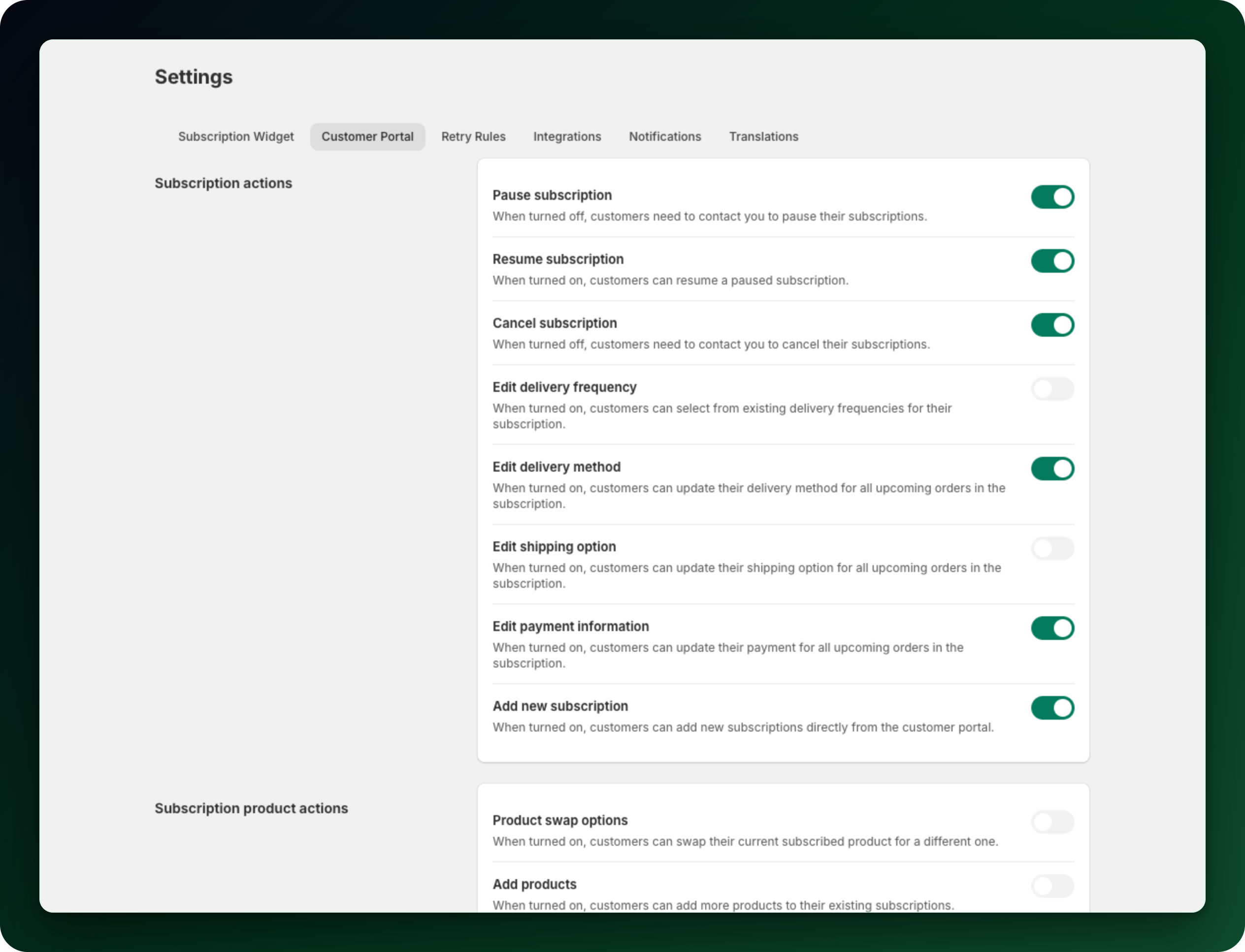
On by default: Pause subscription, Resume subscription, Cancel subscription, Edit delivery method, Edit payment information and Add new subscription. Off by default: Edit delivery frequency and Edit shipping option.
Step 4: Decide what they can do with the products
Product swap options, Add products and Remove products are off by default. Turn them on and customers can change what is in a live subscription themselves. To keep the first order as sold, turn on Customers cannot change their subscription product until a renewal has been paid in the Limits section. The products stay locked until a renewal has actually gone through; what the customer paid at checkout does not count.
Step 5: Decide what they can do with upcoming orders
Skip upcoming orders is on by default. Off by default: Order now option, Reschedule upcoming orders, Add or remove one-time purchase products to upcoming orders, Edit shipping address for upcoming orders, Show store credit balance for upcoming orders, Edit payment information for upcoming orders. Skipping has a limit of its own in the Limits section, working like the product one above.
Step 6: See what the customer sees
In their Shopify account the page is called Subscriptions. Each subscription shows its status and next order date, and Manage opens the actions. What is in that menu depends on your switches and on the status: Skip next order and Pause need an active or failed subscription, Resume needs a paused one, and any other status leaves only View details. That opens delivery frequency, payment method, shipping address, the upcoming order and past orders.
What to do next
Turn on only what you are ready to support. Every switch you leave off means those customers write to you instead.
Want to keep customers who click cancel? Retention → Cancellation Flow offers them a discount, a skipped delivery or a product swap first. It needs a paid plan, Growth or higher.
Check Settings → Notifications so pausing, skipping and cancelling still send the customer an email.
Stuck on any of this? Open the chat in the bottom right corner of the app and we will help you set it up.