
Every subscription a customer starts in your store shows up on one page. Finding the right one and reading it correctly is the first step for every other action in this section.
Step 1: Open the list
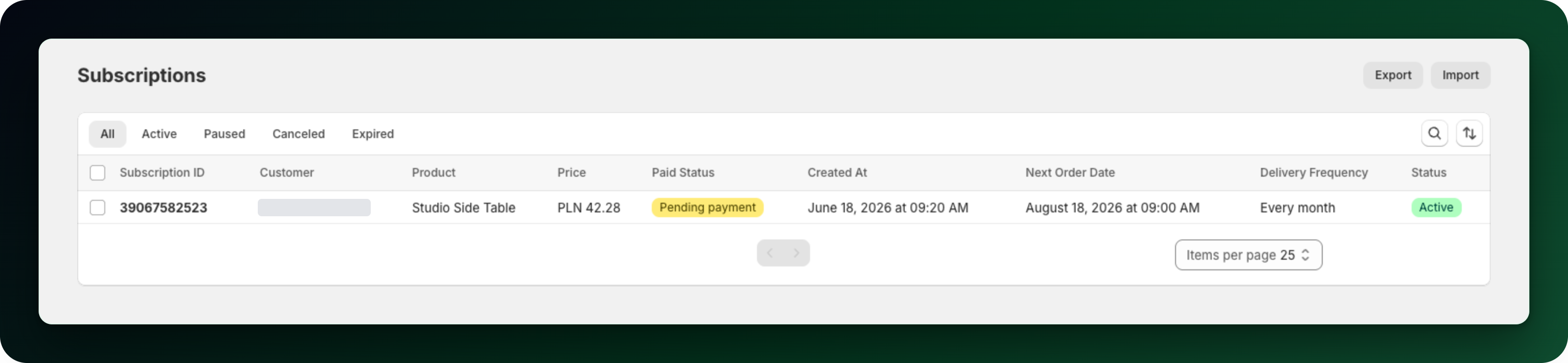
Go to Apps → Progus Subscriptions → Subscriptions. The tabs above the table are All, Active, Paused, Canceled and Expired. All hides canceled subscriptions, so open Canceled to see those. Active also lists subscriptions whose last charge failed. They keep the green Active badge in the table, so open the subscription to see the failed-billing banner on its page.
Step 2: Search or sort
The search field matches product name, product ID, customer email, customer name and subscription ID. Search filters the rows you are looking at, so page through the list or pick the right tab if you find nothing. Paging is switched off while a search is active: clear the search first, page to the part of the list you want, then search again. Sort by Purchased or Updated, Newest first or Oldest first.
Step 3: Read the row
The columns are Subscription ID, Customer, Product, Price, Payment, Created, Next order, Delivery frequency and Status. A canceled subscription shows Never as its next order date. An ID that starts with M is a subscription billed through Mollie, and it opens its own page instead of the one described below.
Step 4: Open the subscription
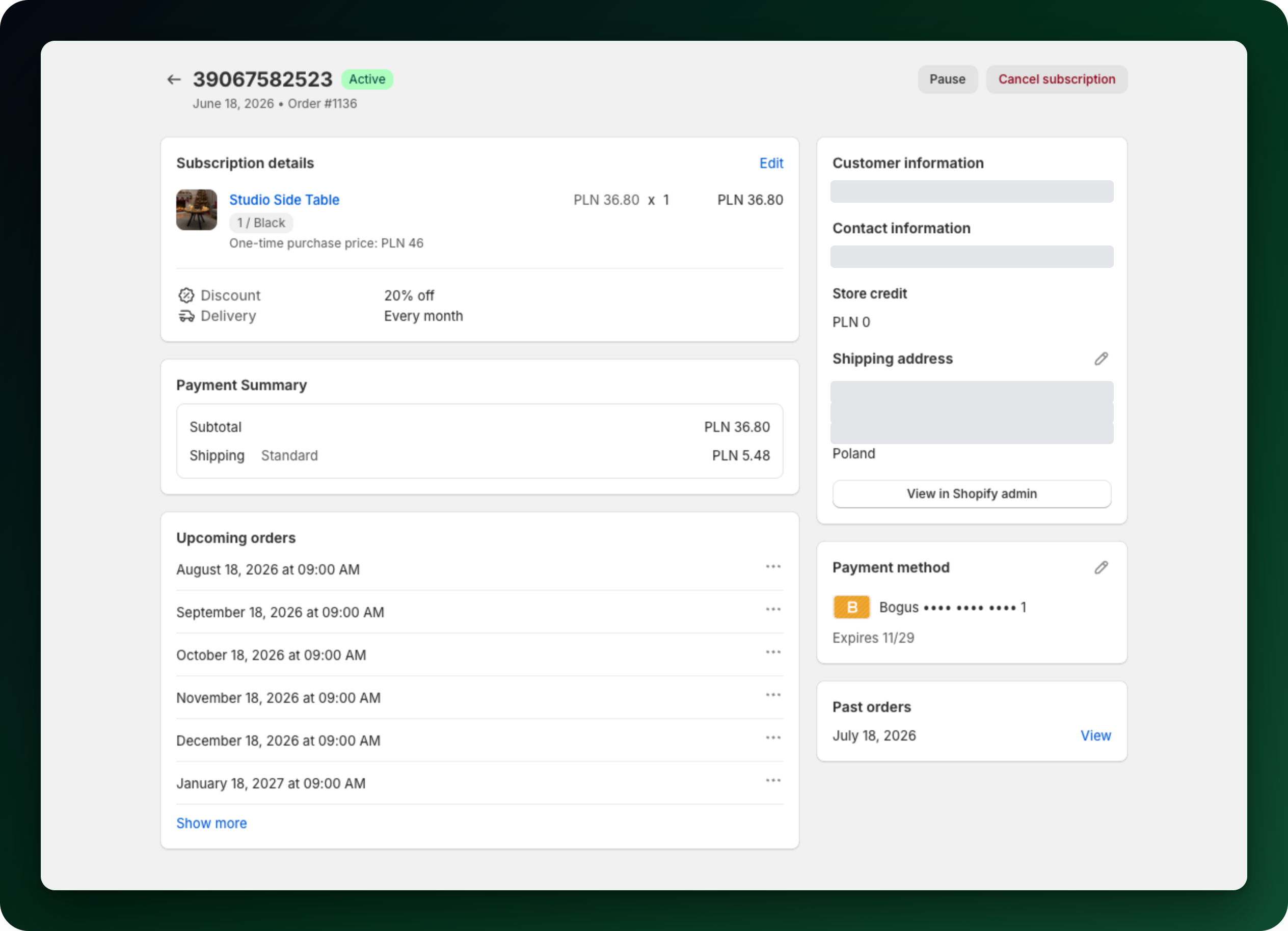
Click the row. The detail page is titled with the subscription ID, carries the status badge, and shows the cards below. A card that has nothing to show is left out.
Subscription details: the products, the discount and the delivery frequency, with an Edit link.
Payment summary: Subtotal and Shipping for one delivery, plus Tax and Total when the subscription carries them.
Upcoming orders: the next billing dates, each with its own actions menu.
Customer information: the person, their contact details, their shipping address and their store credit.
Payment method, only when the customer has a saved one.
Past orders, only once a cycle has been billed. Each past cycle links to the order it created, or reads Order not created when that cycle produced no order.
Step 5: Or start from the customer
If you know the person and not the subscription, open Subscribers and click the customer. Their page has three tabs: Subscriptions, Upcoming orders and History.
What to do next
Pause and resume a subscription.
Change what is in a live subscription.
Change the next billing date, or bill a subscription now.
Stuck on any of this? Open the chat in the bottom right corner of the app and we will help you set it up.