
The subscription widget only renders when the product page has both an active plan for that product and the app block in the theme. Work through these checks in order, they are ordered by how often they turn out to be the cause.
Step 1: Check the product is covered by an active plan
Open Plans and confirm a plan with status Active includes this exact product. The storefront hides options from plans that are inactive, so a plan you switched off (or a plan you edited to drop the product) makes the widget disappear from that page while other products keep it.
In the theme editor the app tells you this directly: instead of the widget you see "The subscription widget only shows on products that have a subscription plan attached."
Step 2: Check the block is on the theme you publish
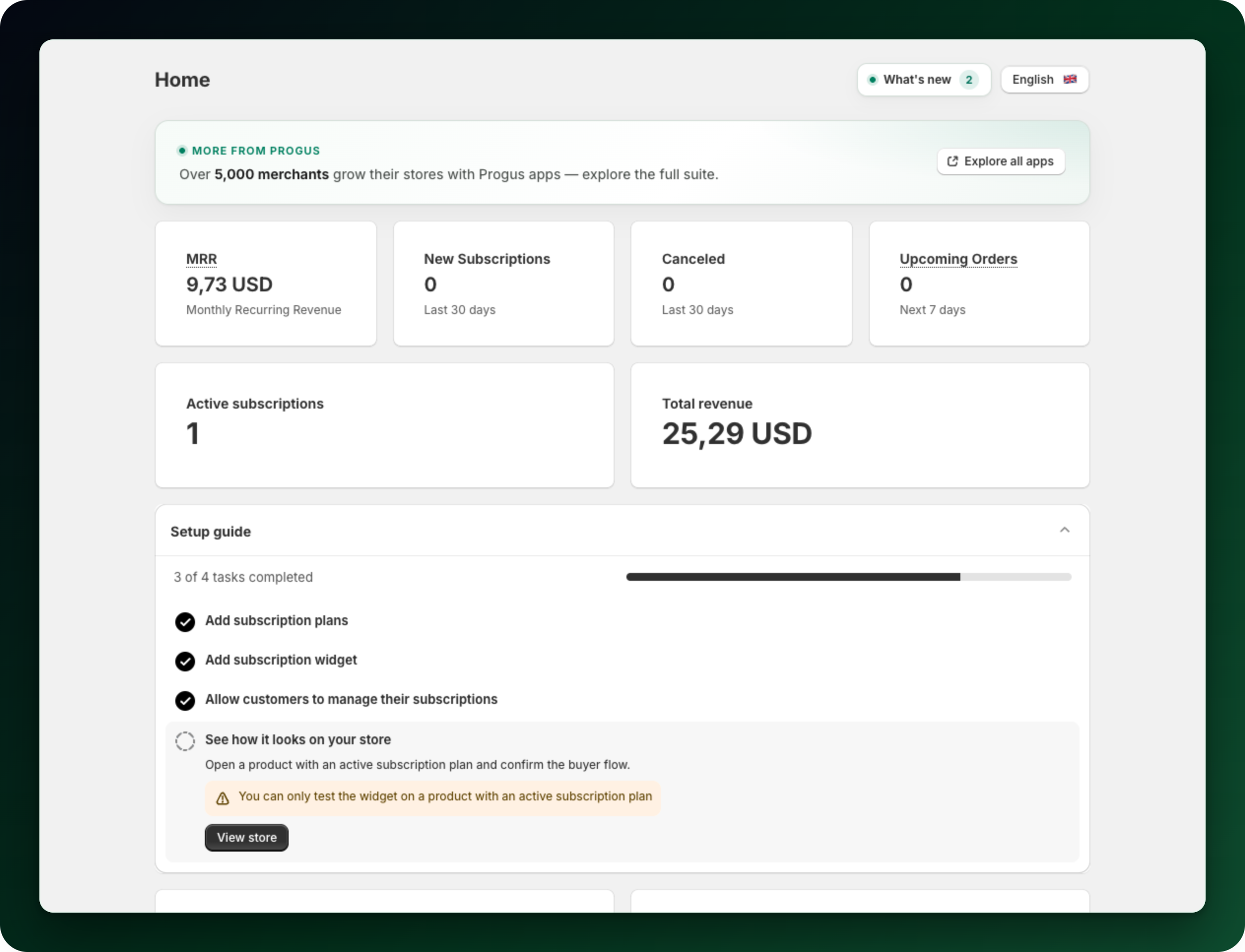
Go to Home and look at the Setup guide step Add subscription widget. The app looks at the default product template of your published theme, and ticks the step off once it finds the block there, as in the picture below. An unfinished step usually means the block is missing. Read a ticked step with care: a block that only sits on an alternate product template reads as missing, and a step is never un-ticked once it has been ticked.
Open the theme editor on a product template, add the block named Subscription widget inside the product section and save. Two traps: the block only exists on product templates, and adding it to a duplicated or unpublished theme changes nothing on the live store.
Step 3: Check your theme accepts app blocks
The block needs a product template that accepts app blocks. Older themes whose product section does not support them offer no place to add it. If the block is nowhere to be found in the editor, this is why. On such a theme, Home offers Install without app block, which gives you a snippet to paste into your product template. If you would rather not touch theme code, ask us in the chat and we can place the widget for you.
Step 4: Check the Free plan limit
On the Free plan the widget is switched off on your storefront once your store passes $500 of subscription revenue in 30 days. There is no subscriber limit, only that one. You are warned at 80% of it and then get a 30 day grace period: Pricing shows You have outgrown this plan during it and New sign-ups are paused after it. Moving to a paid plan turns the widget back on.
What to do next
Open the product in your store in a private window and confirm the subscribe option is there.
Test on a product you know has an active plan. A product without one is not a valid test.
Happy with the placement but not the look? Subscription widget lets you pick a template and change labels and colours.
Stuck on any of this? Open the chat in the bottom right corner of the app and we will help you set it up.