
A customer who has just subscribed does not know where their subscription lives. Two small blocks close that gap, and both are off until you add them in an editor.
The thank-you page block
Straight after checkout the buyer sees a box headed Subscription with one line, "Continue to your account to view and manage your subscriptions", and a Manage your subscription button that opens the account. It appears only on orders that contain a product bought with a subscription plan, so a normal one-time order is untouched.
The button on the order
Later, when the customer opens that order in their account, a Manage subscription button sits in the order actions. It appears only when the order actually created a subscription. One subscription takes the customer straight to it; several turn the label into Manage subscriptions and open the list instead.
Step 1: Add the blocks
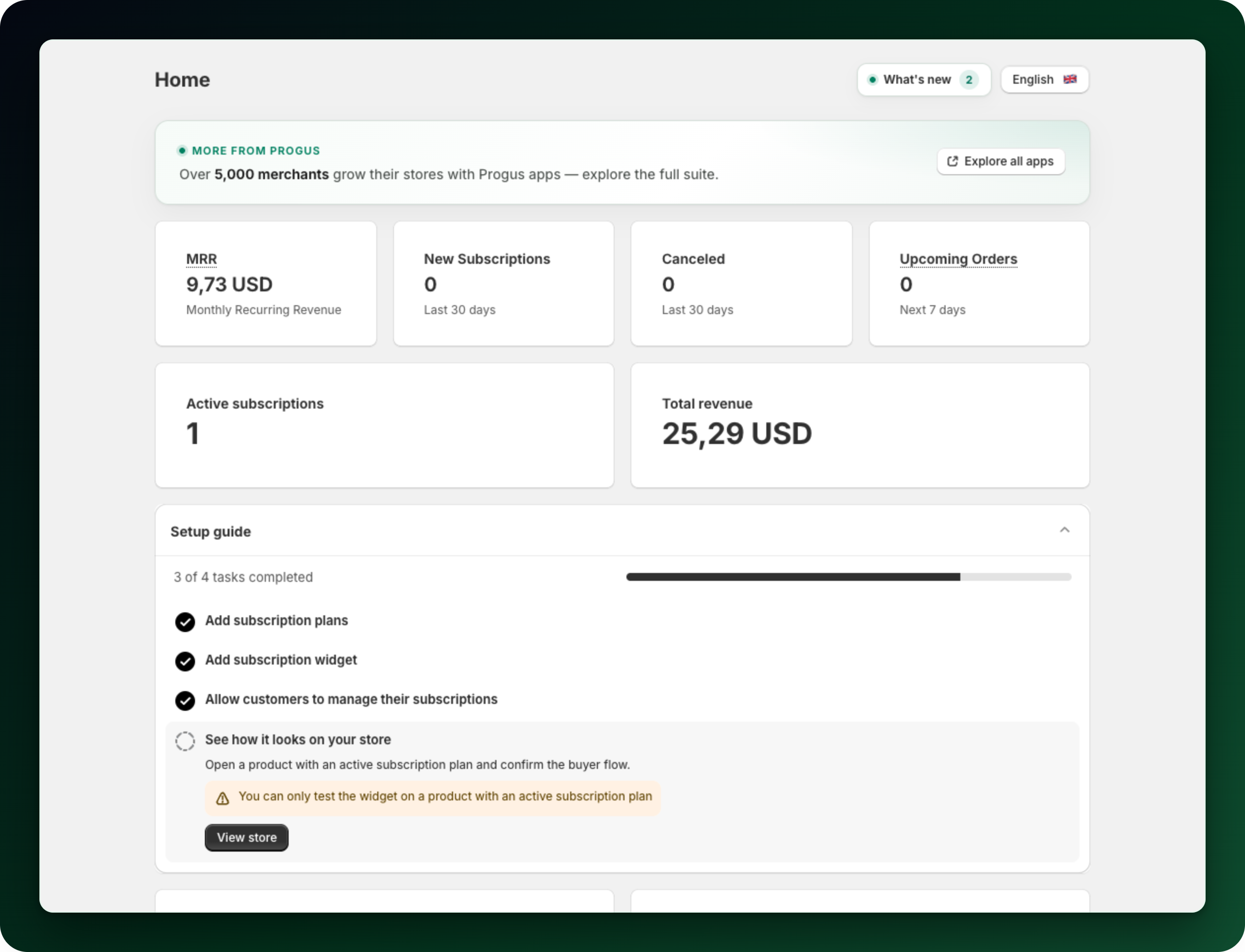
Open Apps → Progus Subscriptions and find the step Allow customers to manage their subscriptions on the home page. It lists the three blocks to add: Subscription management page, Order action menu (Manage subscriptions) and Thank-you page block.
Once all three are in place the step is ticked off and folds away, as in the setup guide below.
Step 2: Let the app confirm them
The home page marks each block Active as it goes live. The step completes once all three are live. Nothing else has to be saved in the app.
Step 3: Check it on a real order
Place a test subscription order and look at the thank-you page, then open the same order in the customer account. If the thank-you box does not appear, the order most likely has no subscription line: the block hides itself on ordinary orders by design.
Subscriptions billed through Mollie
A Mollie subscription is not a Shopify subscription contract, so the order carries none and the Manage subscription button still appears on it, but it opens the subscriptions list instead of linking straight to that subscription. The subscription is still listed on the subscriptions page in the account, where the customer can pause, skip, resume or cancel it.
What to do next
Decide what customers may do once they reach the account page.
Check the emails your subscribers get, since the activation email carries the same link.
Add the subscription widget to your product pages if you have not yet.
Stuck on any of this? Open the chat in the bottom right corner of the app and we will help you set it up.