
A swap group is a set of products that customers may exchange for one another inside a live subscription. Without a group, a product has no swap options at all, so nothing can be swapped by accident.
Swap rules need a paid plan, Growth or higher. On the Free plan the page shows an upgrade notice.
Step 1: Create a swap group
Go to Settings → Customer portal and find What customers can choose from, which sits next to the switch that lets customers swap at all. Create a swap group from the swaps list there and set a Group name for yourself, for example "Coffee varieties". Customers never see it. The old /app/swap-rules address still works and redirects to Automations, if you have it bookmarked.
Step 2: Choose the scope
Which subscriptions this applies to decides where the group applies. All subscription plans (store-wide) covers every subscription. Picking one plan limits the group to lines on that plan, on top of any store-wide groups.
Step 3: Add the swappable products
Click Add products under Swappable products. A group needs at least two products, because every product in the group can be swapped for every other one. Order them with Move up and Move down, leave Customers can switch between these products ticked and Save.
If a product also sits in another group, the app warns you: the customer then sees the options from every group that applies to their plan, combined. Removing a product warns you too, because subscribers who currently have it lose their swap options.
Step 4: Let customers use it
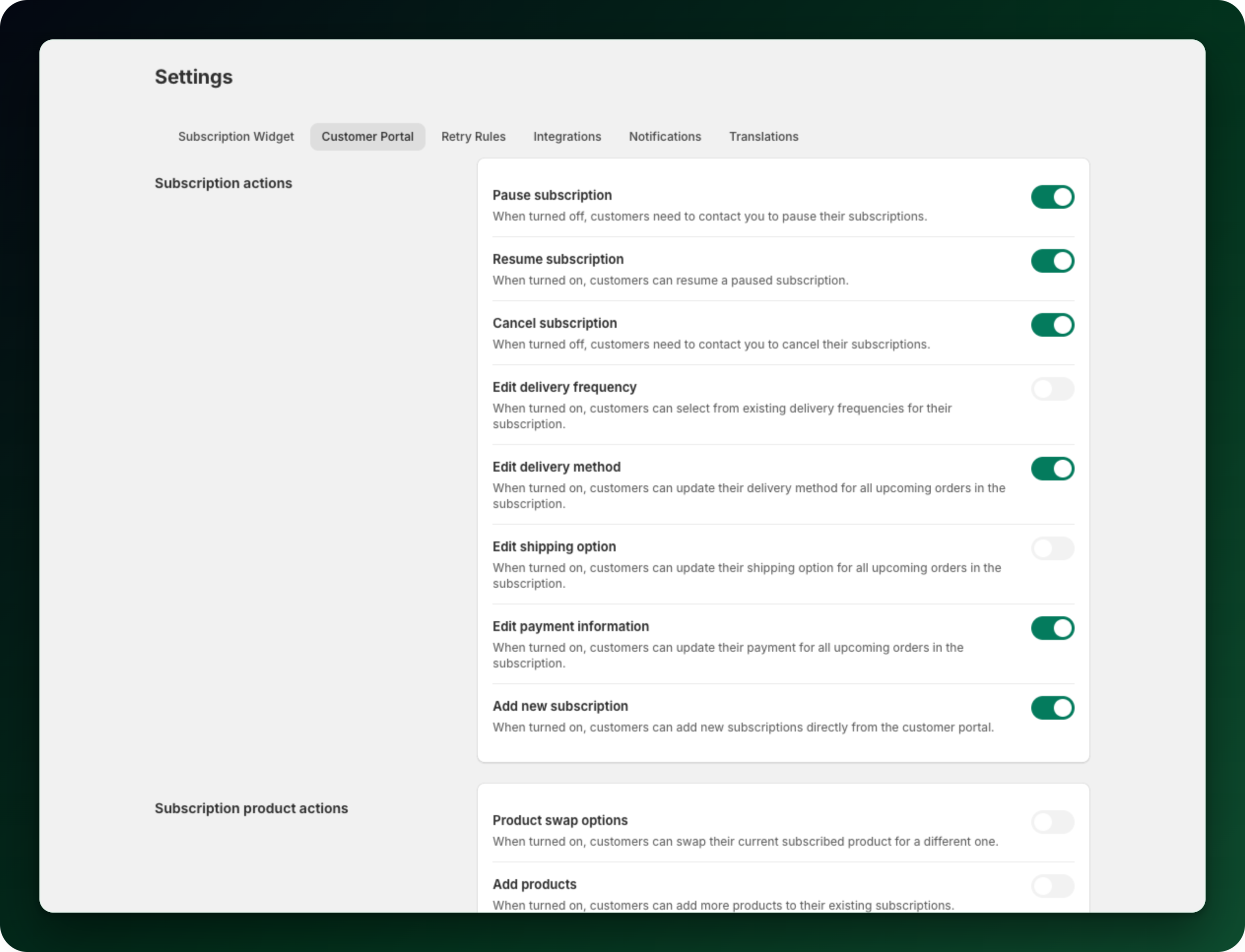
Go to Settings → Customer Portal and turn on Product swap options under Subscription product actions. A Swap button then appears on the subscription line in the customer account, showing each alternative with its own price, and a Confirm swap step.
When a swap is refused
If the product is not in any group that applies to that plan, the customer opens the picker and reads "Swapping isn't available".
Only a one-time add-on line hides the Swap button. A club membership line or a club box line still shows the button, and the swap is refused once the customer opens it. Swapping works on both billing engines, so a Mollie-billed subscription swaps from the same rules you set here.
If you use the product limit under Limits, the Swap button appears only after the subscription has been charged a second time, so after the first renewal.
What to do next
Group products of similar price. The picker shows each alternative's price next to it, so a cheaper option is an easy click.
Set a cancellation reason to Swap product, so someone who wants a change is shown the picker before they cancel.
Stuck on any of this? Open the chat in the bottom right corner of the app and we will help you set it up.