
An add-on group is a named list of products that subscribers can add to their next delivery. You build the list once and attach it to any plan, instead of picking the same products over and over on every plan.
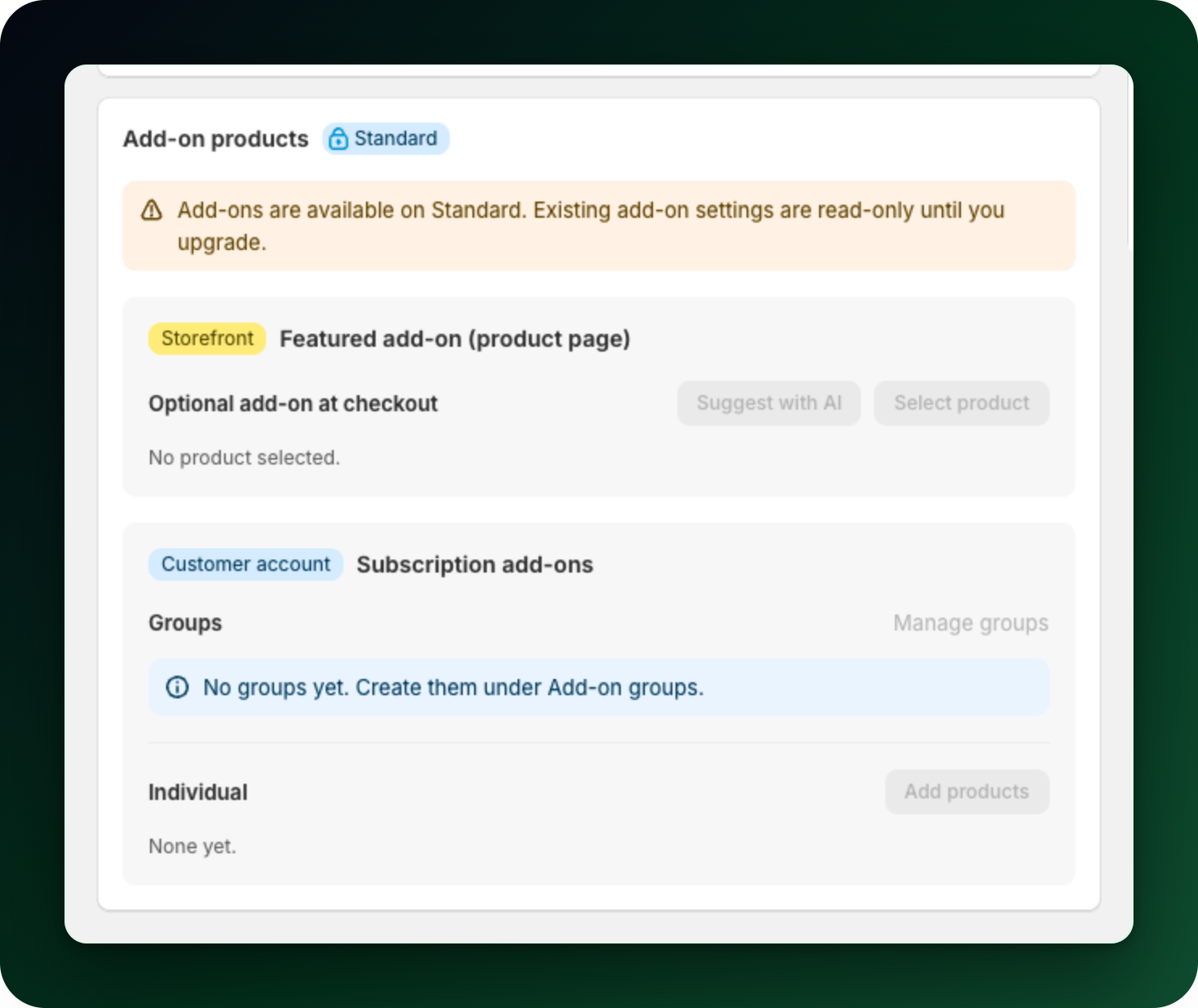
Add-on groups need a paid plan, Growth or higher. On the Free plan the Add-on products card on a plan stays read-only and shows No groups yet.
Step 1: Create the group
Go to Settings → Customer portal and find What customers can choose from, which sits below the three toggles (Add products, Remove products and Add or remove one-time purchase products) that turn the add-on button on. Click through to the add-on groups and then Create add-on group. Give it a Group name (internal only, customers never see it), for example "Protein Accessories".
Step 2: Add the products
Click Add products in the Products section and pick the variants. A group needs at least one product. Use Move up and Move down to set the order customers see, and Remove to take one out. Products already in the group are skipped if you select them twice.
Leave Add-on group active ticked and click Save. Untick it later and the group's products stop appearing as add-ons in every plan it is attached to, without deleting anything.
Step 3: Attach it to a plan
Open a plan under Plans, find the Add-on products card and attach the group under Subscription add-ons → Groups. A group does nothing until it is attached to at least one plan. Products that fit only one plan can go under Single products on the same card instead.
Step 4: Keep the list tidy
The Add-on groups table shows Name, Products and Status, with All, Active and Disabled tabs, a search box and a Sort button. Select rows to delete several at once.
Deleting a group removes it from every plan it is attached to, so prefer disabling it if you might bring it back.
What to do next
Under Settings → Customer Portal, turn on at least one of Add products, Remove products or Add or remove one-time purchase products to upcoming orders. With all three off, subscribers never see the add-on card.
Remember that a subscriber can hold one active add-on at a time, so a short, strong list beats a long one.
Read "Sell add-ons with a subscription" for the featured add-on on the product page, which is configured separately.
Stuck on any of this? Open the chat in the bottom right corner of the app and we will help you set it up.