
Installing the app does not change your theme. The subscription options a customer sees on a product page come from a theme app block that you add once, in the theme editor. After that it appears on every product that has an active subscription plan.
Step 1: Open the theme editor
The shortest way is from the app. In the setup wizard, Install widget opens Install the widget on your store, and Open theme editor opens your product template with the block ready to place. Those instructions call the block "Progus Subscriptions". In the theme editor it is listed as Subscription widget.
Already finished the wizard? The dashboard Setup guide has the same step, with an Add subscription widget button that opens the same theme editor. That step ticks itself off once the app sees the block in your theme.
Step 2: Add the block
In the theme editor the block is listed with your apps as Subscription widget. Place it in the product section where the subscription options should appear, then save the theme.
It is a safe change: the widget only appears on product pages of products with an active subscription plan, nothing else in your theme changes, and you can remove the block at any time.
Step 3: Confirm it is live
In the wizard the badge reads Not installed or Installed, and Check status re-checks your live theme. If you see Not detected yet, the block was not added or the theme was not saved. The badge is the quick check, not the proof: open a product that has an active plan and look at the page yourself.
Step 4: Choose how the widget looks
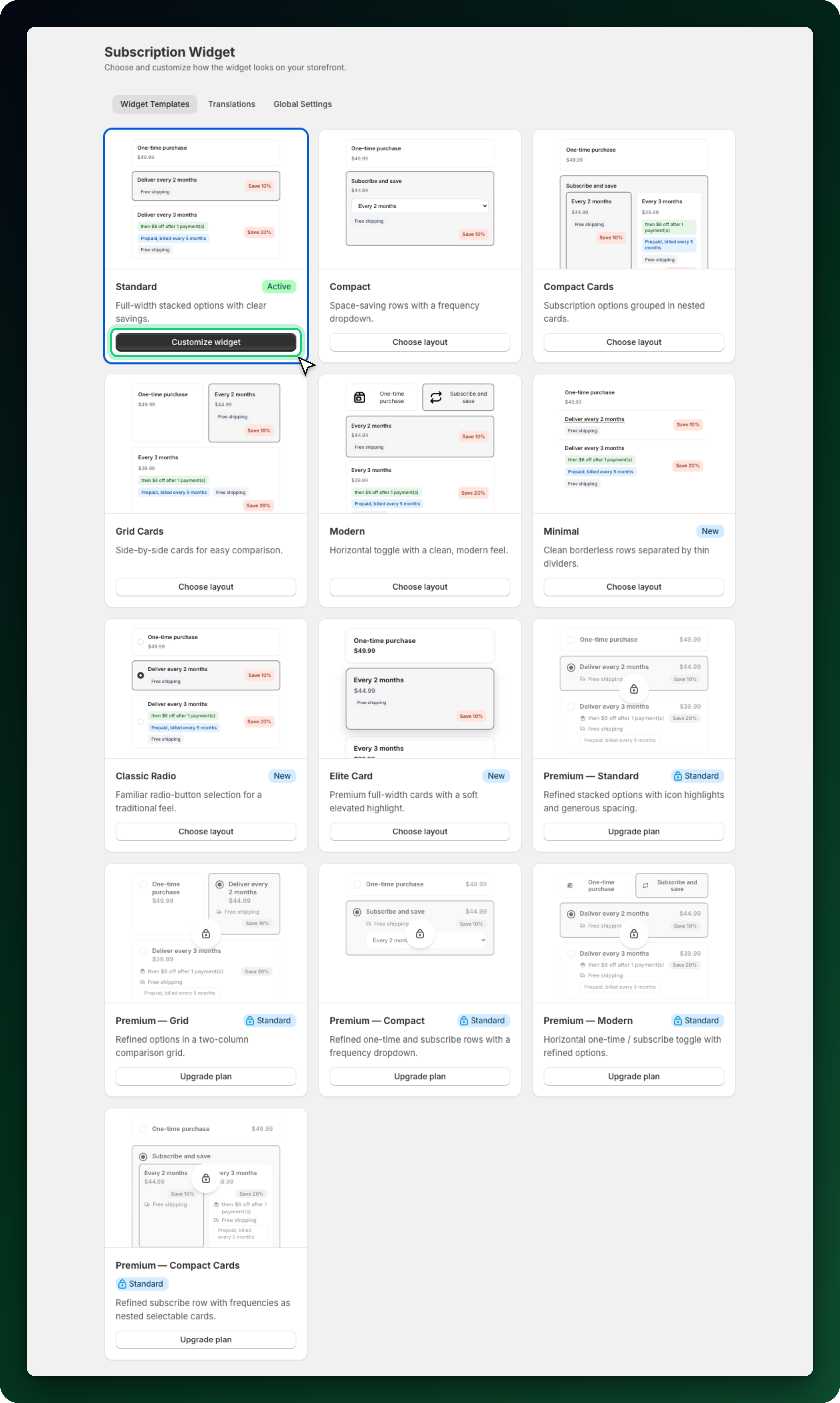
Go to Apps → Progus Subscriptions → Subscription widget. The page has three tabs: Widget Templates, Translations and Global Settings.
Choose layout applies a template. Seven of them are available on every plan, among them Standard, Modern, Minimal and Compact Cards.
Customize widget opens labels and text, appearance, display settings and custom CSS. These are shared across templates, so switching layout keeps your colours and wording.
The five Premium templates need a paid plan. On Free they show a lock over the preview and an Upgrade plan button instead of Choose layout.
What to do next
Open a product that has a plan and check that the subscription options show where you placed the block.
Billing subscriptions through Mollie? The app also ships a second block, Local payment checkout (Mollie), which adds a checkout button for iDEAL, Wero and Bancontact.
Change the wording customers read in Subscription widget → Translations.
Stuck on any of this? Open the chat in the bottom right corner of the app and we will help you set it up.