
A plan can hold more than one delivery option. Each option is a separate choice on the product page, with its own frequency, its own discount and its own settings, and the customer picks one when subscribing.
Step 1: Add the option
Open the plan and click Add option at the bottom of the Delivery options card. The new option opens straight away so you can fill it in.
Step 2: Set its frequency
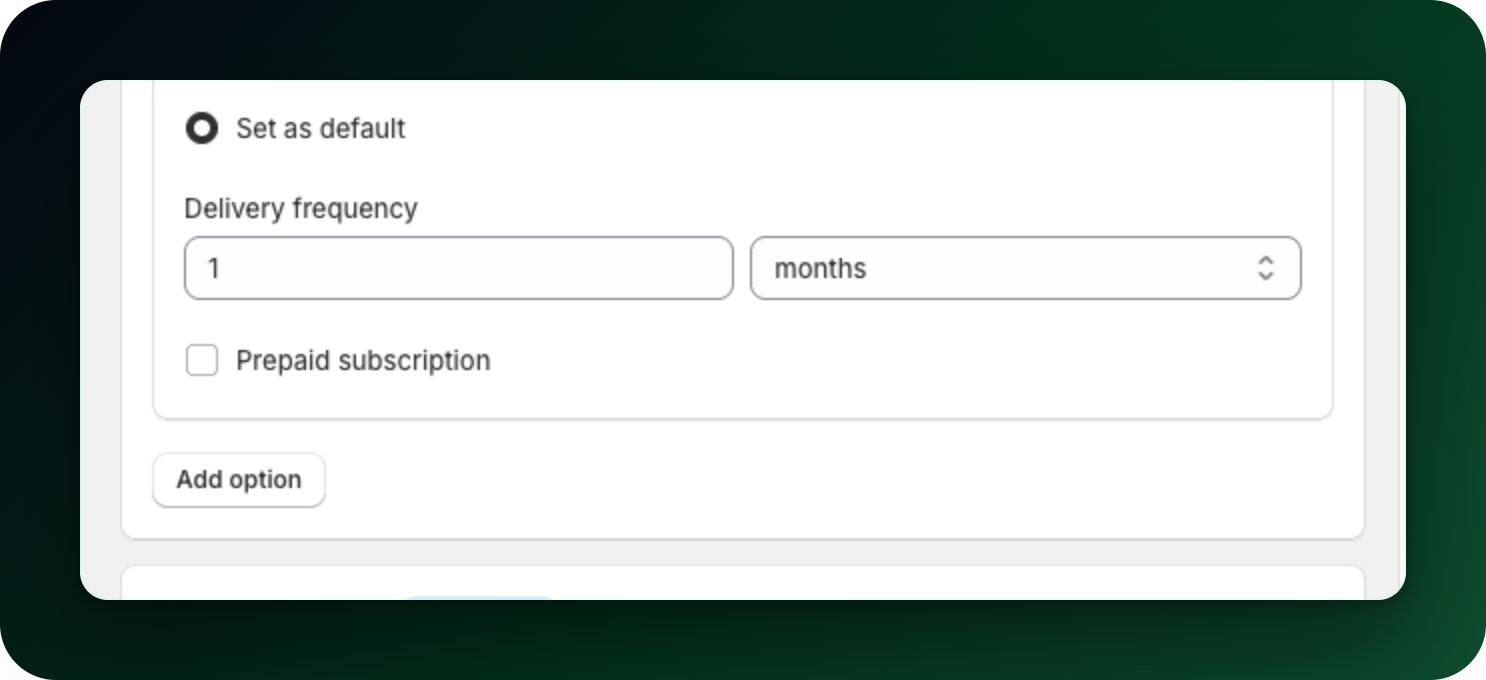
Enter a number under Delivery frequency and pick days, weeks, months or years next to it. Two options in the same plan cannot share the same frequency and interval; saving stops with "Delivery options must be unique".
Everything else on the option is independent too: discount, free shipping, prepaid billing and the custom name apply to that option only.
Step 3: Choose which one is preselected
Pick the option you want selected when the product page loads from the Default selection list. It applies to the whole plan, so there is one setting per plan, not one per option.
Step 4: Review the list
Click Done to collapse an option. Collapsed, it shows one line: the frequency or your custom name, a badge with the discount, and badges for Free shipping and prepaid if they are on. The two icon buttons on the right of that line are Edit and Remove option. The last remaining option cannot be removed, since a plan needs at least one.
Copying options from another plan
The Copy options from another plan button at the top of the Delivery options card opens Select discounts, a list of the frequency and discount combinations already used in your plans. The list covers every plan in the store, including the one you are editing. Tick the ones you want and they are added to this plan as new options, ready to edit.
A copied option brings the frequency, the discount and the discount-change settings with it. Prepaid billing, free shipping and the custom name are not copied, so set those again on the new option.
What to do next
Give the least frequent option the biggest discount, so the longer commitment pays off for the customer.
Check the widget preview on the right: it lists the options exactly as the product page will.
Rename an option with "Use a custom plan name" if "Deliver every 4 weeks" is not how you talk to your customers.
Stuck on any of this? Open the chat in the bottom right corner of the app and we will help you set it up.