
Export gives you your subscriptions as a CSV file: one row per product line, with the customer, the frequency, the next billing date, the price and the delivery address. Use it for reporting, or to hand a supplier a delivery list.
The file holds both billing engines: Shopify contracts and Mollie-billed subscriptions land in the same export, so "export all" really is the whole table you see in the app.
Step 1: Open the export dialog
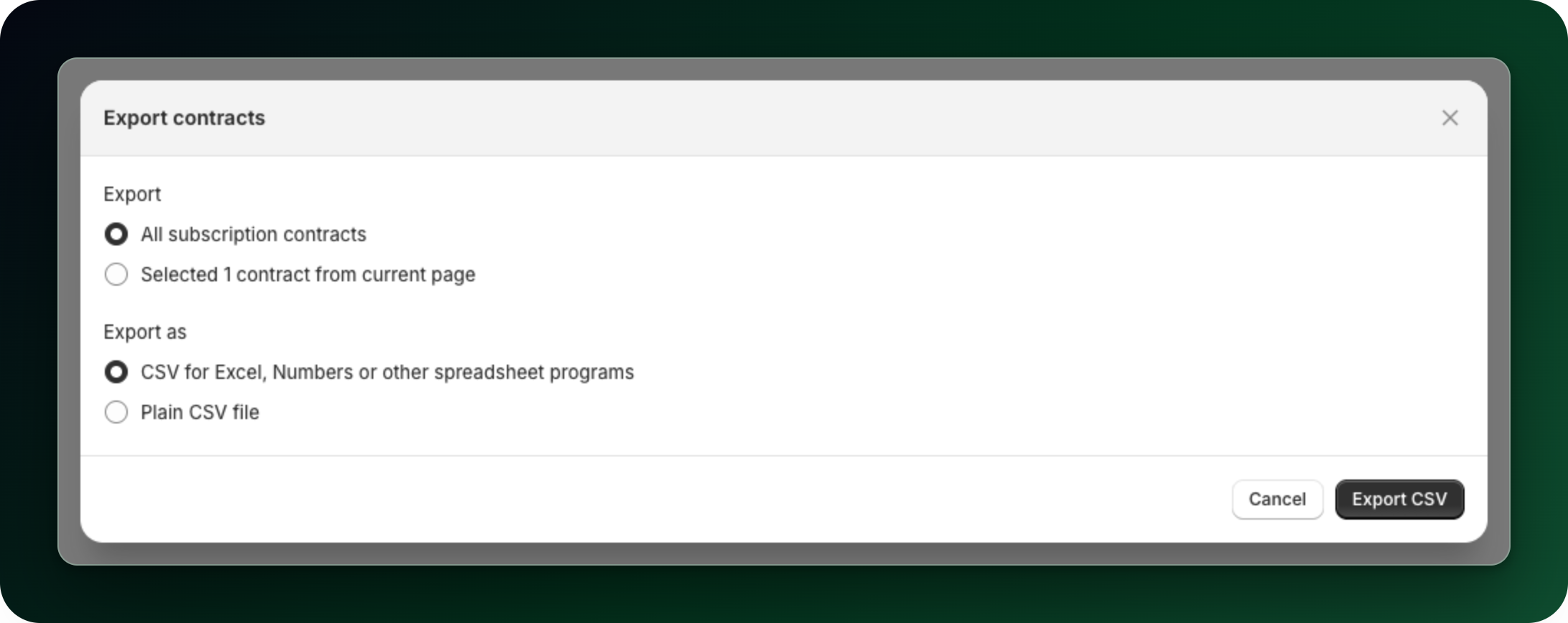
Go to Subscriptions and click Export in the top right. The Export contracts dialog opens.
Step 2: Choose what to export
Pick All subscriptions for everything, or tick rows in the table first and pick the option below it, which names how many rows you ticked. Ticks are kept when you move between pages, so a selection built up across several pages is exported in full. The all-contracts export is not narrowed by the tab or the search you have on screen.
Step 3: Choose the format
CSV for Excel, Numbers or other spreadsheet programs: semicolon separated, with the marker spreadsheets need to open accented characters correctly. Pick this one if you will open the file by double-clicking it.
Plain CSV file: comma separated, no marker. Pick this one if another system will read the file.
Step 4: Download
Click Export CSV. The file downloads as subscriptions_export_ followed by today's date. A subscription with three products becomes three rows sharing the same customer, frequency and next billing date.
What is in the file
The columns are customer_email, product_variant_id, quantity, billing_interval, billing_interval_count, next_billing_date, price, delivery_price, currency_code, status, and then the delivery address: address_first_name, address_last_name, address1, address2, city, province, country_code, zip and phone.
The importer reads the same column names, but do not use an export to bulk-edit your subscriptions. Import only ever creates, so re-importing an edited export leaves each customer with a second subscription billed alongside the first. Change subscriptions in the app instead.
The header row need not be exact: capitals and spaces are accepted.
What to do next
Moving subscriptions in the other direction? See Import subscriptions from another app.
Export before a bulk change, so you have a record of what the subscriptions looked like.
Stuck on any of this? Open the chat in the bottom right corner of the app and we will help you set it up.