
The subscription widget is the block on your product page where a customer chooses between a one-time purchase and a subscription. You pick a layout first, then adjust the text, the colours and what the widget shows.
Step 1: Open the widget page
Go to Apps → Progus Subscriptions → Subscription Widget. The page has three tabs: Widget templates, Translations and Global settings. If you land on Settings → Subscription Widget, that link now opens Customer Portal instead.
Step 2: Choose a layout
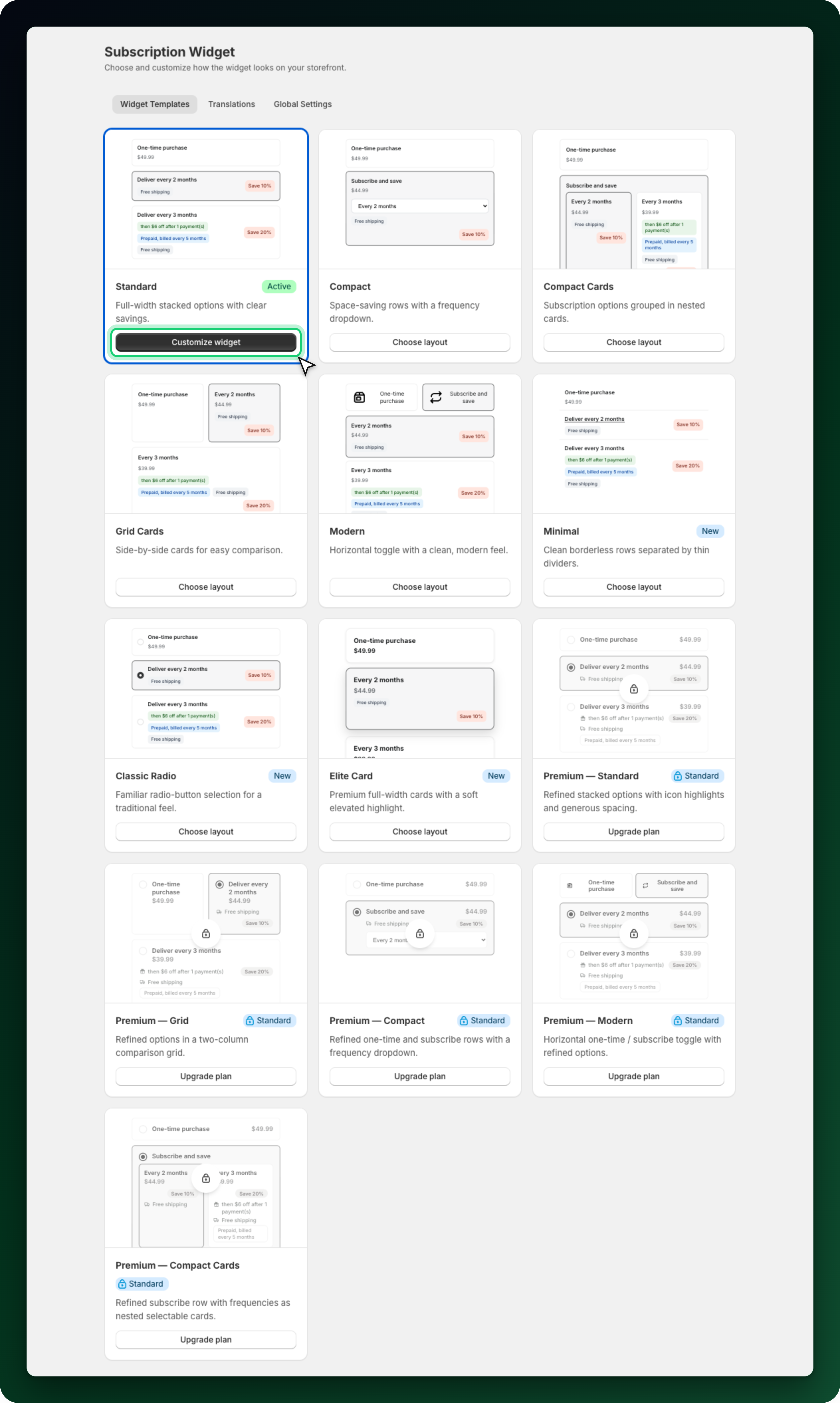
The gallery shows twelve layouts, each with a live preview of your own settings. Seven are on every plan: Standard, Minimal, Classic Radio, Compact, Compact Cards, Segmented and Modern. The five Premium layouts come with any paid plan. On Free their preview carries a lock and the button reads Upgrade plan.
Click Choose layout to put a layout live. The one in use carries an Active badge.
Step 3: Open the editor
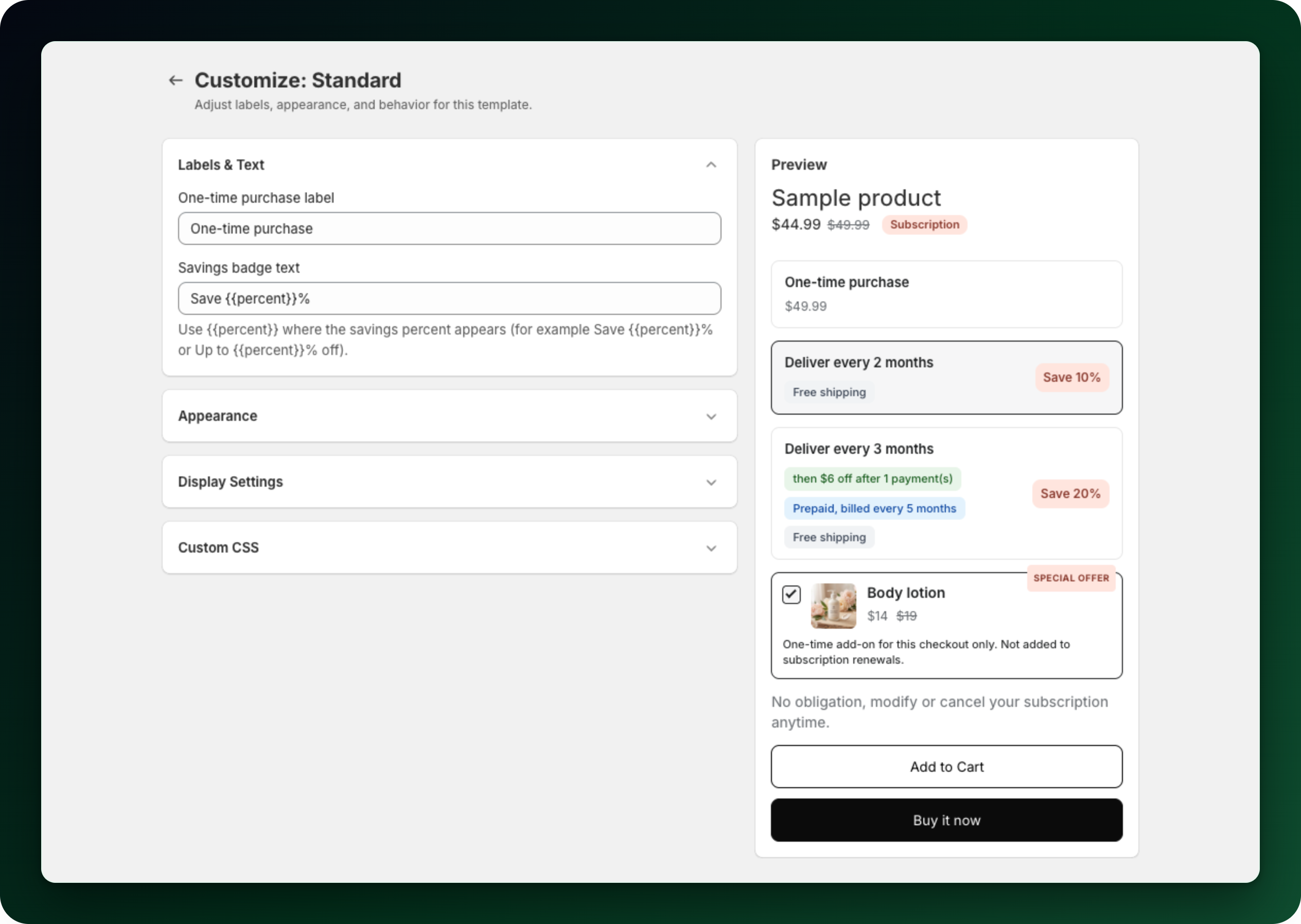
Only the active card has a Customize widget button. Every other unlocked card shows Choose layout, so apply the layout you want first, then click Customize widget on it. The editor has four sections you can fold open, with a preview on the right.
Step 4: Change the labels
Under Labels and text you can set the One-time purchase label and the Savings badge text. Keep {{percent}} in the badge text so the real discount number appears. The "Subscribe and save" label only appears for layouts that show it as a heading.
Step 5: Set the appearance
Under Appearance start from a preset, then fine-tune single colours. Your store is read from your theme and only appears when the theme exposes a brand colour. Seven ready-made schemes sit next to it. Border radius rounds the corners from 0 to 20 px.
Step 6: Decide what the widget shows
Under Display settings:
Limit widget width: cap the widget between 300 and 600 px on wide product pages.
Show compare-at price: show the original price crossed out next to the subscription price.
Show the "Save X%" badge: show the savings badge on each discounted plan.
Show add-on products in purchase widget: show the add-on tile. Two more checkboxes appear once it is on, one for the badge on the tile and one for the notice under it.
The Premium layouts add Show radio buttons. Premium Grid adds a column count and a switch that stretches the last item when the final row is incomplete.
Step 7: Save
Use the save bar at the top. The preview always shows a sample product, not your catalogue, and anything you type into the Custom CSS section reaches the live storefront but never the preview.
What to do next
Open a product with an active plan in your store and check the widget in a real theme.
Translate the widget labels if you sell in more than one language.
Decide what customers can do once they have subscribed, in Settings, Customer portal.
Stuck on any of this? Open the chat in the bottom right corner of the app and we will help you set it up.