
A customer still has coffee left, or they are away for one delivery only. Skipping removes that single order and leaves every later order untouched, which is almost always better than pausing.
Step 1: Find the order in Upcoming orders
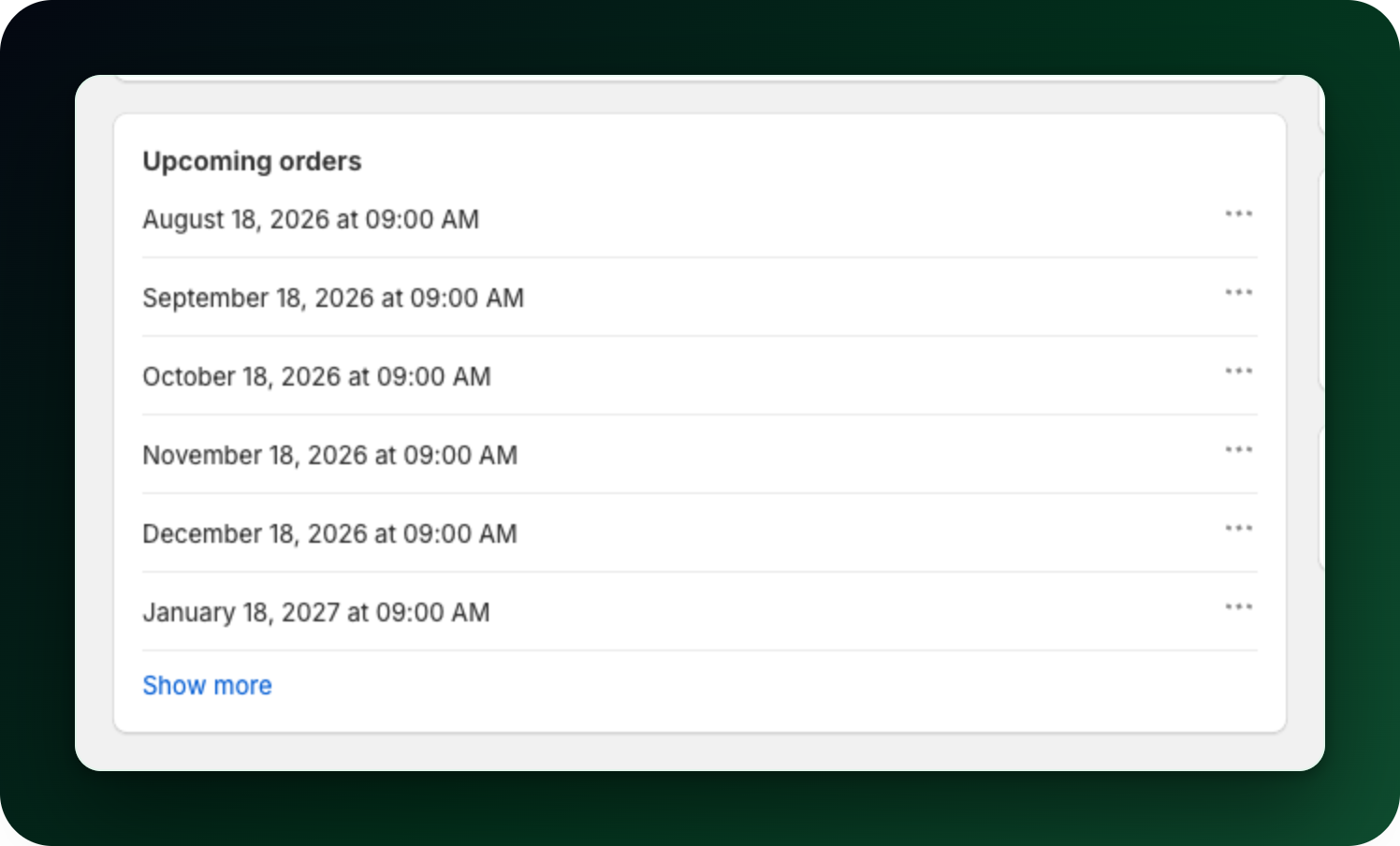
Open the subscription. The Upcoming orders card lists the next billing dates. Use Show more if the date you want is further out. Each date has an actions button on the right.
Step 2: Skip it
Open the actions menu on that date and choose Skip order. A Skip order dialog names the date you are about to skip. Click Skip and the app confirms with Order skipped. The date stays in the list with a Skipped badge, so it is clear that no charge and no order will happen then.
Step 3: Put a skipped order back
The actions menu on a skipped date offers Resume instead. Choosing it removes the badge and the order is billed as planned. You get Order back on the schedule.
Step 4: Skip from the customer page
If you are working through one customer, open Subscribers → the customer → Upcoming Orders. The same Skip and Resume actions are on every row there, across the subscriptions that customer has, except paused and Mollie ones, which have no Skip or Resume on this list. One difference: here Skip takes effect the moment you click it, with none of the confirmation dialog you get in Step 2.
Step 5: Two things that block skipping
A paused subscription has no per-order actions at all. Resume it first, then skip the order you want to skip.
A Mollie subscription has the same Upcoming orders list, but only the next date on it can be skipped. Choose Skip order from its actions menu to move that charge one interval forward, and it only works while the subscription is active.
What to do next
Change the next billing date if the customer wants the order earlier rather than not at all.
Pause the subscription if they want to stop for several deliveries.
Stuck on any of this? Open the chat in the bottom right corner of the app and we will help you set it up.