
The first time you open the app, Progus Subscriptions sends you to a setup wizard instead of the dashboard. It has four steps: Choose setup, Build plan, Widget layout and Publish. It counts as done once you reach Publish or click I'll do this later. Abandon it half way and it opens again on your next visit.
Step 1: Choose how to get set up
The wizard asks How do you want to get set up? and offers three cards. Generate plans with AI reads your products and suggests plans you can edit, and it runs in the background. Create a plan myself lets you pick the products, the interval and the discount yourself. Have us set it up for you hands the whole thing to our team, and it is covered below.
If you would rather we did it
Pick Have us set it up for you and you get the list of what we will do: you approve our access request, then we build the plans, add the widget, install the thank-you page and portal extensions, and move your existing subscribers across. Nothing reaches your storefront until you approve it.
You give us an email for updates and, optionally, a note and a collaborator request code. The code is optional, since our app is already installed; it only makes the request land straight in your admin.
Coming from another subscription app? A line under the three cards asks Coming from another app? and Import your subscribers opens the CSV importer without leaving the wizard. If the app can tell which subscription app you are on, it names it in that line.
Step 2: Build the plan
On the manual path, pick products under Choose products using Search products or Browse. Two products picked at random are already ticked for you, with the hint "We selected a few products to help you get started", so check the list before you continue or you publish a plan on products you did not choose. Under Subscription settings set the Delivery interval and the Discount: no discount, or 5, 10, 15 or 20 percent off. Summary shows what you are about to create, and Create and continue creates a real plan that appears on the Plans page.
Step 3: Pick a widget style and install it
Under Select widget style a live preview shows one layout at a time, and the arrows or the dots under it move you between four: Standard, Modern, Compact Cards and Minimal. The Color scheme swatches recolour it.
The widget lives in your theme, so it needs one more click: Install widget opens instructions with an Open theme editor button. The app checks your theme itself, so the badge flips from Not installed to Installed once the block is really there. Check status re-checks on demand.
Step 4: Publish
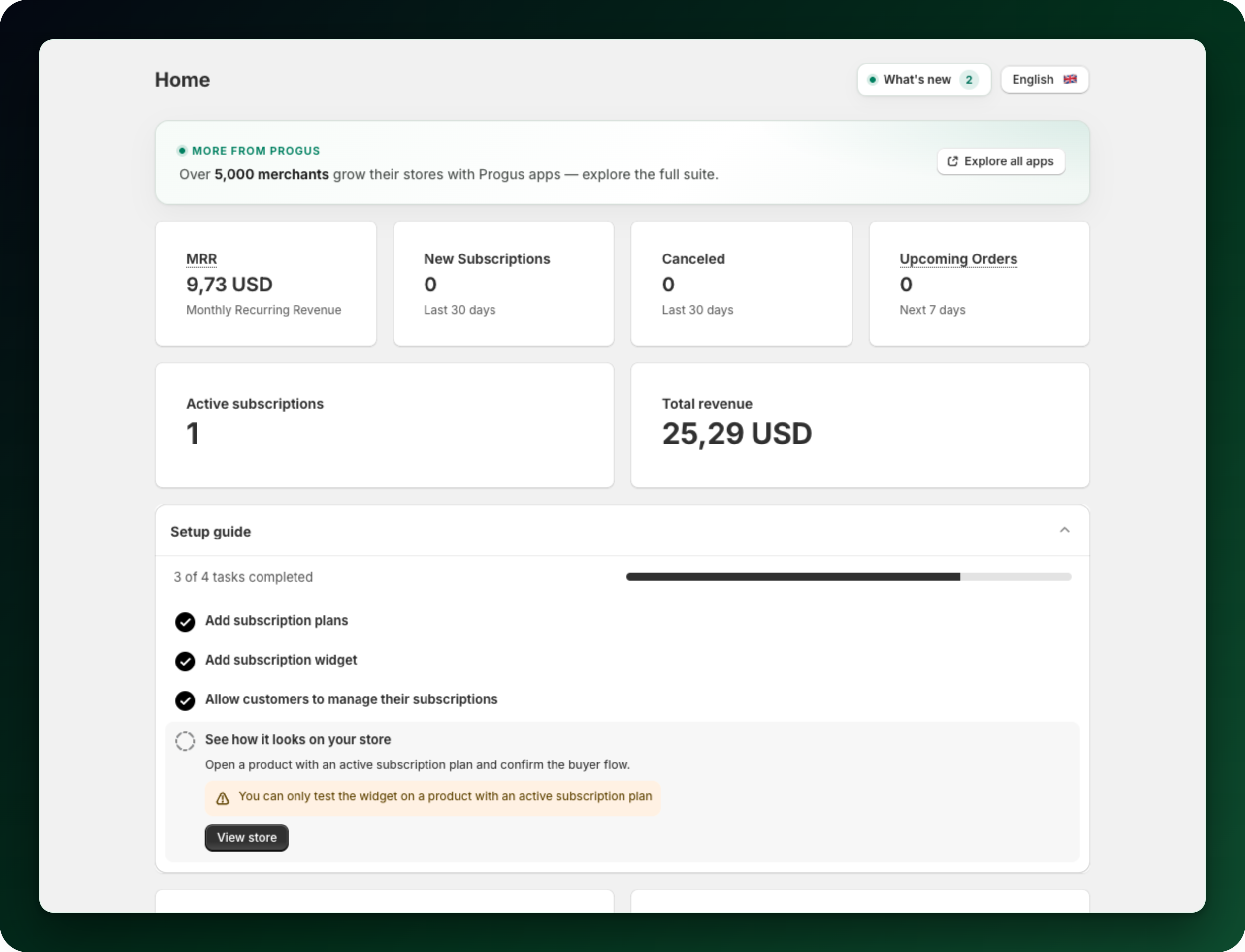
Ready to publish lists what you chose: Products, Delivery, Discount and Layout. Go to dashboard finishes setup. Every setting can be changed later in the app, and the Setup guide on the dashboard lists the remaining tasks, ticking each one off as you finish it.
What to do next
If you skipped the widget step, add the app block to your theme. Until you do, product pages show no subscription options.
Open Plans to add more delivery frequencies, a prepaid option or a second discount.
Go to Settings → Customer Portal and decide what customers can do on their own.
Stuck on any of this? Open the chat in the bottom right corner of the app and we will help you set it up.