
Klaviyo events are the trigger side of your email and SMS flows. Once connected, Progus Subscriptions sends a metric every time something happens to a subscription, so a flow can react to it. The integration needs a paid plan, Growth or higher.
Step 1: Connect to Klaviyo
Go to Settings → Integrations. Until you set it up, the Klaviyo card reads Not connected.
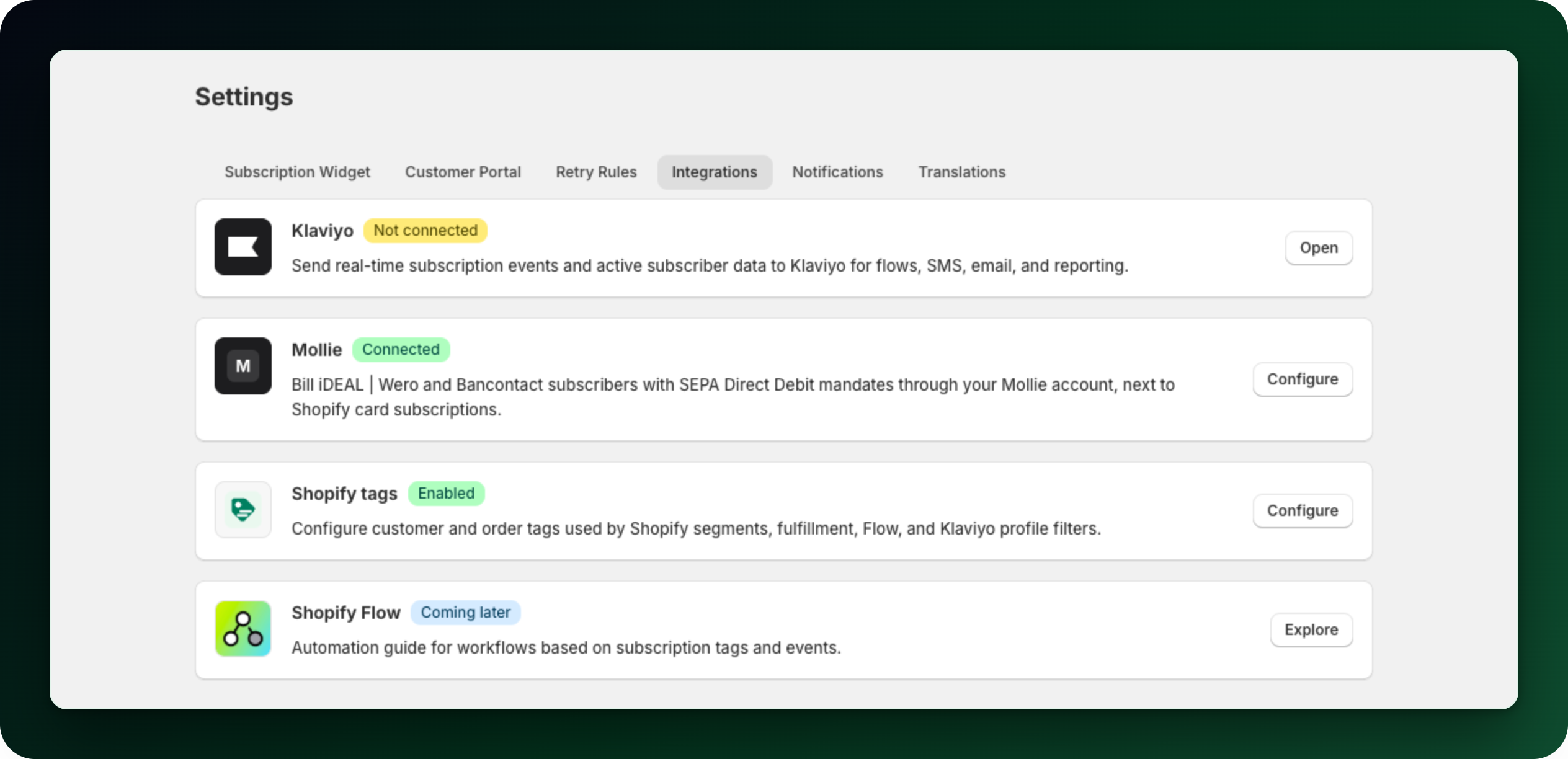
Click Open on the Klaviyo card, then Connect. Klaviyo asks for Events write, Profiles write, Lists write and Accounts read. When you come back, the card shows Connected with the account name.
Step 2: Send a sample event
In the sample events card, pick a Sample event and click Trigger event. The test event goes to your store email, so you can build the flow before a real subscription exists.
Step 3: Sync your active subscribers
Click Sync data to update Klaviyo profiles for every customer with an active subscription billed through Shopify. It writes profile properties only, such as progus_subscription_status and progus_next_billing_date, and never subscribes anyone to a list.
Step 4: Choose the events you send
Every event has its own Send checkbox, and all are on by default. The metric name in Klaviyo is the Event prefix plus the event name, so with the default prefix "Progus" you look for:
Progus Subscription Started
Progus Recurring Order Created
Progus Payment Failed
Progus Subscription Cancelled
Progus Subscription Paused
Progus Retention Offer Accepted
Progus Add-on Purchased
A separate row covers club edition announcements, labeled Club Edition Announced. Its metric is Progus Club Edition Announced. Ignore it unless you run a Club.
When the app can read the Shopify contract behind an event, the event carries the subscription details: status, next billing date, billing and delivery interval, currency and product lines. Mollie-billed subscriptions have no Shopify contract. Their events still carry status, currency, billing interval and next billing date, but not product lines or the prepaid flag. Show payload preview is an example. For exact property names, look at a sample event in Klaviyo.
What to do next
Use Klaviyo events as flow triggers, and Shopify tags for segments and fulfillment rules. See Tag customers and orders automatically.
Build one flow first, usually on the failed payment metric, and check it fires from the sample event.
Stuck on any of this? Open the chat in the bottom right corner of the app and we will help you set it up.